Moving from QNAP QTS to OpenMediaVault
A step-by-step guide for QNAP owners who want to replace QTS with OpenMediaVault (OMV), and keep the things QTS did for the hardware: quiet fans, front lights, buttons, beeps and alerts. You don’t need to know Linux. Where you have to type a command, the guide shows it and says what it does.
The guide was written on the reference TS-253D. Other x86 QNAP models should work the same way, but menus and keys can differ a little. Where that is the case, the guide says so.
Contents
- Is this for you?
- Before you start: back up everything
- Make the OMV installer USB stick
- Install OMV onto the USB SSD
- First login to the OMV web page
- Install omv-extras (optional)
- Install the QNAP plugin
- Set up your storage and shares
- Day to day
- Going back to QTS
- Troubleshooting
- Getting help
1. Is this for you?
OpenMediaVault is a free NAS system built on Debian Linux. It runs file shares (Windows, Mac and Linux), backups, scheduled tasks, Docker apps and more, all from a web page, much like QTS.
On its own, OMV doesn’t know about QNAP hardware. Without help, the fans run at a fixed speed (often loud), the front lights do nothing and the buttons don’t work. The openmediavault-qnap plugin fixes that:
- Fan control like QTS Smart Fan: Quiet, Normal, Performance, or your own curve, based on CPU, system, disk and NVMe temperatures.
- Front lights: the status light shows system health, the disk bay lights show activity and faults, and you can dim them at night.
- Buttons: USB Copy and Reset can run tasks you choose.
- Beeps: optional QTS-style warnings through the buzzer.
- Alerts: emails when a fan stops, a disk gets too hot or a pool has a problem.
- QM2 expansion cards: fan and slot lights, if you have one.
Which QNAP models?
The plugin works on QNAP models supported by the open source qnap8528 driver. That is the Intel and AMD (x86) models with an IT8528 or similar embedded controller, such as the TS-x53D, TS-x51, TS-x73 and TS-x77 families. Check the driver’s model list before you start. ARM models (for example the TS-x28A or TS-x31 families) are not supported.
The plugin is fully tested on the reference TS-253D. Other models are expected to work but have not been tested yet; see the tested models list. If yours isn’t there, a test report helps everyone.
What you need
- A USB SSD or a good USB stick, 16 GB or bigger, for OMV itself. OMV is installed on this USB drive. Your internal disks stay free for your data. A small USB SSD (or an M.2 SSD in a USB enclosure) is much better than a cheap stick: cheap sticks wear out. This is how the reference TS-253D runs.
- A second USB stick (2 GB or more) for the installer. It gets wiped.
- A USB keyboard and an HDMI monitor or TV for the install, if your QNAP has an HDMI port. Some people report that Mac keyboards don’t work in the QNAP BIOS; a plain Windows keyboard is safest.
- A network cable from the NAS to your router. The installer needs internet access.
- Another computer (Windows, macOS or Linux) to make the installer stick and to use the OMV web page.
- Somewhere to put a copy of all your data while you switch (see step 2).
No HDMI port? Some QNAP models (many TS-x73 and rack models) have none. You can still do this, but it is harder: the usual way is to plug the USB SSD into an ordinary PC, install OMV onto it there, then move it to the QNAP. That is beyond this guide; ask on the forum (step 12) first.
How long it takes
- Backing up: from an hour to a day or more, depending on how much data you have. This is usually the slowest part.
- Installing OMV and the plugin: about 1 to 2 hours the first time.
- Setting up shares and copying data back: an hour, plus copy time.
Plan a weekend if you have a lot of data. You can stop between steps.
2. Before you start: back up everything
This is the most important step. Installing OMV will not touch your disks if you follow this guide, but you will need to erase the data disks to use them in OMV.
Why you can’t just keep your QTS storage pool:
- QTS builds its storage pools in its own way (with extra QNAP layers on top of standard Linux pieces). OMV can’t safely take over a QTS storage pool, and you shouldn’t rely on it. Experts sometimes manage to read one, but don’t plan your move around that.
- QuTS hero pools use a QNAP version of ZFS that OMV can’t import.
So the plan is: copy your data off, switch to OMV, set up new storage, copy the data back.
- List what you have: shared folders, how big each one is, and who uses them. QTS shows this in Control Panel > Shared Folders.
- Copy everything to somewhere else: a big USB disk, another NAS, another computer, or cloud storage. Hybrid Backup Sync in QTS can copy shared folders to a USB disk.
- Check the copy: open a few files from the backup, on another computer.
- If you can, keep two copies of anything you can’t replace (photos, documents).
- Write down the things you will set up again by hand: user names, share names and who can use them, your network settings, any scheduled jobs, and the apps you use.
QTS settings can’t be moved to OMV. The QTS configuration backup (Control Panel > Backup/Restore) only works with QTS. Keep it anyway, in case you go back.
3. Make the OMV installer USB stick
Do this on your other computer.
- Go to the OpenMediaVault download page
and download the latest openmediavault 8 ISO for amd64. It is a
single file ending in
.iso. - Download a tool to write it to a USB stick:
- balenaEtcher (Windows, macOS, Linux), or
- Rufus (Windows only).
- Plug in the spare USB stick. Everything on it will be erased.
- In balenaEtcher: click Flash from file, pick the ISO, click Select target, pick the USB stick, click Flash. In Rufus: pick the USB stick under Device, click SELECT and pick the ISO, then START. If Rufus asks, choose Write in DD image mode.
- When it finishes, your computer may say it can’t read the stick. That is normal. Eject it.
4. Install OMV onto the USB SSD
4.1 Prepare the NAS
- In QTS, shut the NAS down normally. Wait until it is fully off.
- Pull the disk trays out a little (or all the way), so the data disks are not connected. This is the easiest way to be sure the installer can’t touch them. The OMV documentation recommends disconnecting all disks except the one you install to.
- Plug in the keyboard, the HDMI monitor and the network cable.
- Plug the USB SSD (your future OMV drive) into a USB port on the back. Use a USB 3 port if you have one.
- Plug the installer stick into another USB port.
Leave the QNAP’s built-in flash alone. Every QNAP has a small internal flash chip (called a DOM or eMMC, often 512 MB to 5 GB) that holds QTS. You can’t remove it, but you should never install onto it. As long as it is untouched, you can go back to QTS later (step 10).
4.2 Boot from the installer
You need the NAS to start from the installer stick instead of QTS.
- Turn the NAS on and straight away tap the boot menu key a few times a second. On many recent QNAP models this is F7. QNAP’s own guide uses F7 for the boot options screen on UEFI models.
- A list of boot devices appears. Pick the installer stick (it may show the stick’s brand name, sometimes with “UEFI” in front) and press Enter.
If no list appears and QTS starts instead, turn the NAS off and try again with the BIOS setup key: F2 or DEL (QNAP’s guide says either). In the BIOS:
- Find the Boot tab (use the arrow keys).
- Put the USB stick first in the boot order. On older models QNAP’s guide says: Boot > Legacy > Boot Device Priority > USB, then F5 or F6 to move the stick to the top.
- Choose Save & Exit (or Exit Saving Changes).
Tips if you can’t get in:
- Start from fully off, not a restart. A restart can skip the BIOS screen.
- Try another keyboard (a wired Windows keyboard).
- The keys vary by model. Check your model’s hardware user guide on qnap.com (search for “BIOS” in it), or ask on the forum.
4.3 Run the installer
The OMV installer is text based. Use the arrow keys, Tab and Enter.
- Pick your language, location and keyboard layout.
- The installer sets up the network on its own using your router. If it asks which network port to use, pick the one with the cable.
- Give the NAS a host name (any short name, for example
nas) and accept the suggested domain or leave it empty. - Set the root password. Root is the all-powerful Linux user. Pick a strong password and write it down: you need it if you ever use the command line.
- Choose a mirror (download server) near you. The default is fine.
- Pick the disk to install onto. This is the step to get right.
You will see a list of disks with their names and sizes. Pick the
USB SSD. Recognise it by its brand and size.
- Do not pick a small 0.5–5 GB device: that is the QNAP’s internal flash with QTS on it.
- Do not pick your installer stick.
- If you see your data disks, you didn’t disconnect them. Stop, turn off and pull the trays out.
- The installer erases the USB SSD and installs. This takes about 10–20 minutes.
- If it asks where to install the boot loader (GRUB), pick the same USB SSD again.
- When it says the install is complete, remove the installer stick and let the NAS restart.
If you see “Unable to install GRUB”, the OMV documentation has a fix in its installation guide.
4.4 Make it boot OMV every time
After the restart, the NAS may start QTS again from its internal flash. To make it start OMV:
- Turn it off, then on, and enter the BIOS setup (F2 or DEL).
- Under Boot, put the USB SSD first. It may show as “debian” or by its brand name.
- Save & Exit.
You will see text scroll past and then a login prompt on the screen. That means OMV is running. The screen usually also shows the NAS’s network address (an IP address: four numbers with dots between them). Write it down.
- Turn the NAS off from the screen by logging in as
rootwith your root password and typingpoweroff(this command shuts down safely). Push the disk trays back in, then turn it on again.
5. First login to the OMV web page
- Find the NAS’s address. Either:
- read it from the monitor (step 4.4), or
- look in your router’s web page for the list of connected devices, and find the host name you chose.
- On your other computer, open a web browser and go to
http://followed by the address, for examplehttp://NAS_ADDRESS(put the address you wrote down in place of NAS_ADDRESS). - Log in with OMV’s default account:
- User name: admin
- Password: openmediavault
- Change this password now. Click the person icon at the top right, choose Change password, and set a new one.
You will see the OMV dashboard. The menu on the left is where everything lives: Storage, Services, Users, System and so on.
One thing that’s different from QTS: when you change settings, OMV often shows a yellow bar at the top saying there are pending configuration changes. Nothing takes effect until you click the tick (Apply) button in that bar. If something “doesn’t work”, check for the yellow bar first.
Good first jobs:
- System > Date & Time: set your time zone.
- System > Update Management: install any updates, then restart if it asks.
6. Install omv-extras (optional)
omv-extras is a community add-on that unlocks more plugins for OMV, for example ZFS (the file system QuTS hero uses), Docker apps (through compose), and flashmemory, which reduces wear on a USB stick used as the system drive. You don’t need it for the QNAP plugin. Install it if you want ZFS or Docker, or if OMV runs from a USB stick rather than an SSD.
The easy way: upload it in the web page
- On your other computer, download
openmediavault-omvextrasorg_latest_all8.deb
(the
8at the end means OMV 8). - In OMV go to System > Plugins and click the upload button (the cloud with an arrow).
- Choose the file you downloaded and confirm.
- Find openmediavault-omvextrasorg in the list, select it and click Install.
- Reload the page in your browser. A new System > omv-extras page appears, and more plugins show up under System > Plugins.
The official way: one command
The omv-extras project’s own method is one command, run as root:
wget -O - https://github.com/OpenMediaVault-Plugin-Developers/packages/raw/master/install | bash
What it does: wget downloads omv-extras’ install script from GitHub,
and bash runs it. The script checks your OMV version and installs the
matching omv-extras package.
To type it, you need a command line on the NAS. Two ways:
- At the NAS itself: on the keyboard and monitor, log in as
rootwith your root password, type the command, press Enter. - From your computer over the network (SSH): open Terminal on macOS,
or Windows Terminal / PowerShell on Windows, and type
ssh root@followed by the NAS’s address, for examplessh root@NAS_ADDRESS. Typeyesif asked about a fingerprint, then your root password (nothing shows while you type it; that’s normal). SSH is normally switched on in a new OMV install; if it isn’t, turn it on in Services > SSH.
Type exit when you’re done.
The omv-extras documentation lives at wiki.omv-extras.org.
7. Install the QNAP plugin
7.1 Upload and install
- On your other computer, open the plugin’s latest release page.
- Under Assets, download the file named
openmediavault-qnap_<version>_all.deb(for exampleopenmediavault-qnap_8.0.6_all.deb). That one file is all you need. - In OMV go to System > Plugins.
- Click the upload button (the cloud with an arrow), choose the file, and confirm.
- Find openmediavault-qnap in the list (type
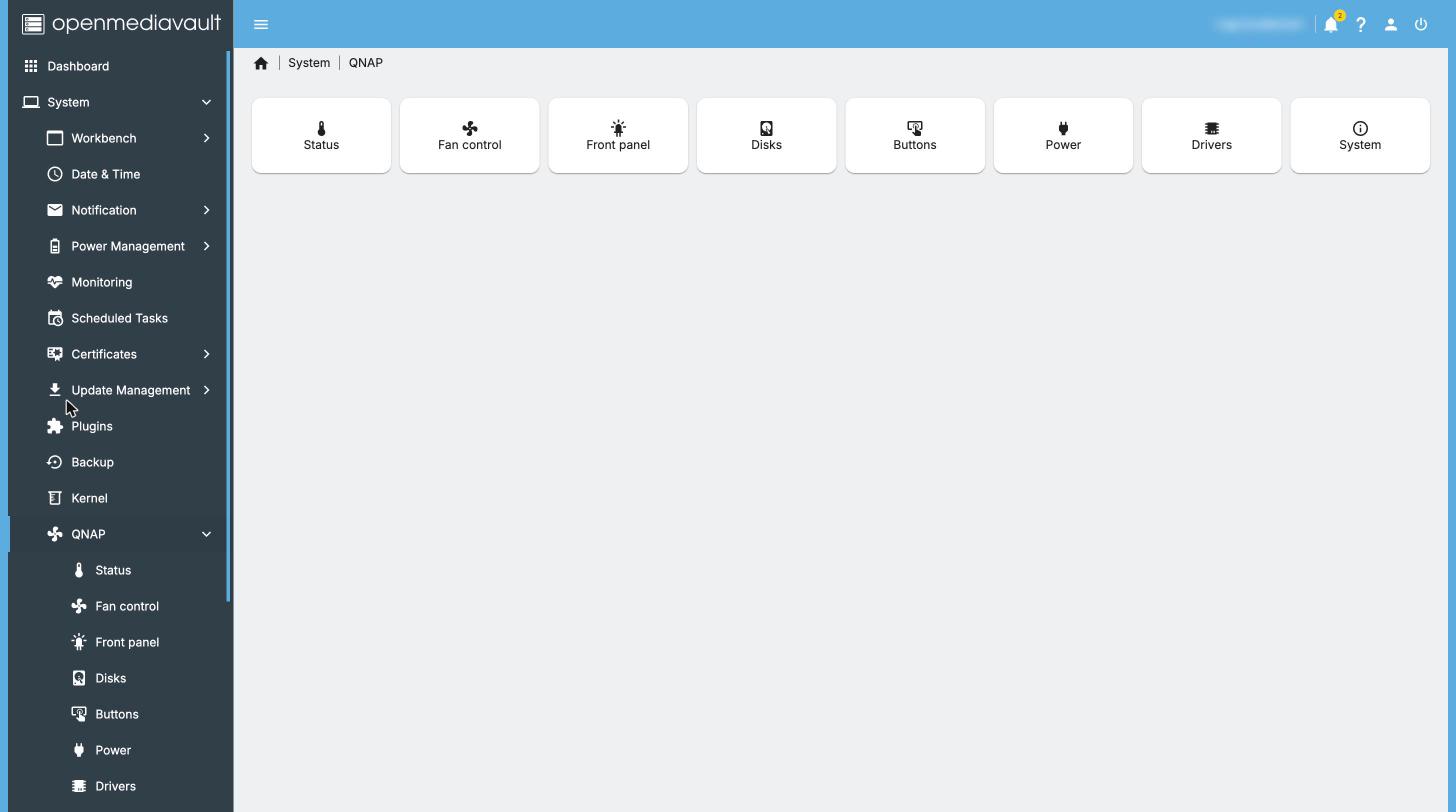
qnapin the search box), select it, and click Install. A window shows the progress; close it when it says it’s done. - Reload the page in your browser. You now have System > QNAP.
7.2 Set up the drivers
The plugin needs two small open source drivers to talk to the QNAP hardware. One click installs them.
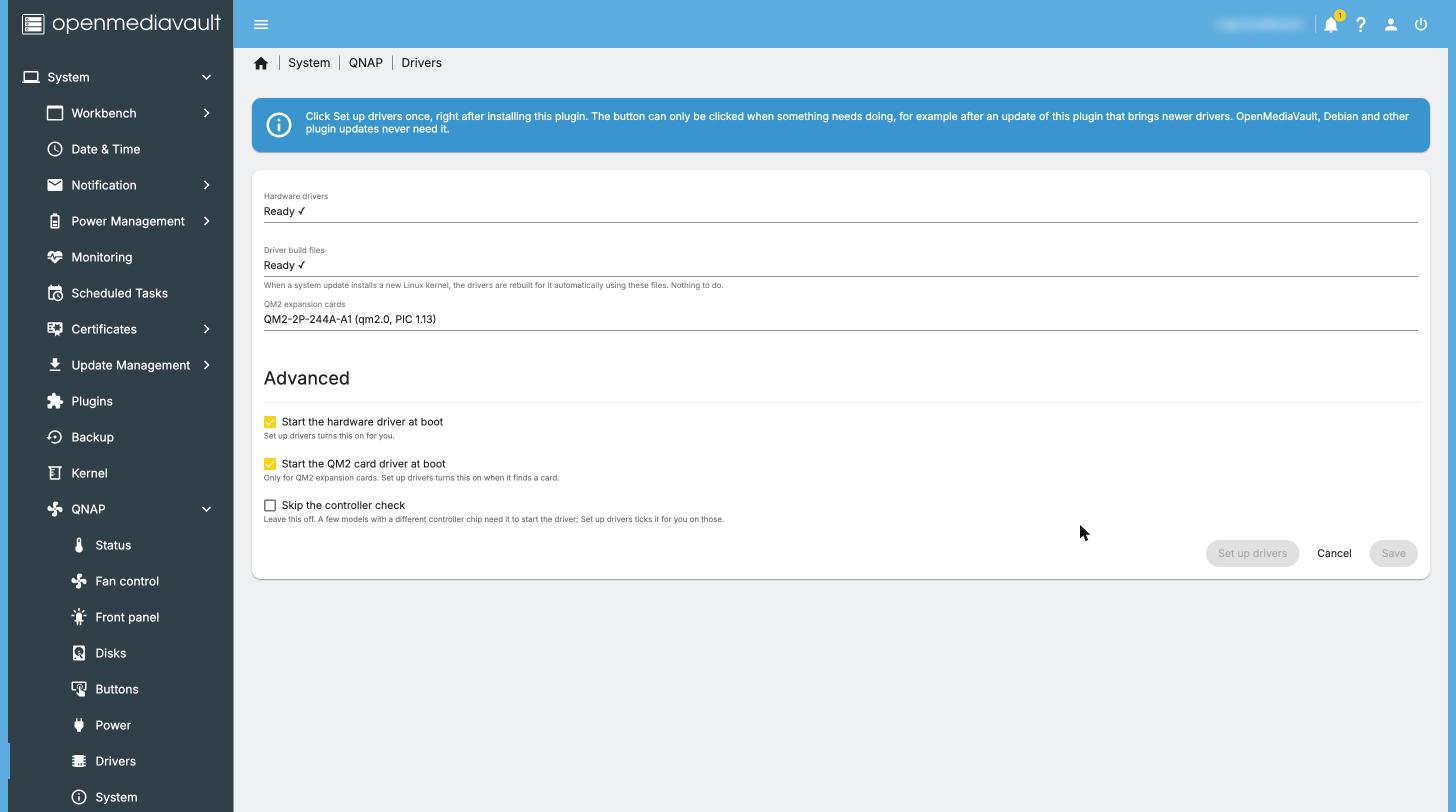
- Go to System > QNAP > Drivers.
- Click Set up drivers.
- Wait. This installs the hardware drivers and everything they need to build for your system, then turns on fan control. It takes a few minutes. Leave the page open until it finishes.
- When it’s done, Hardware drivers and Driver build files both say Ready ✓.
Do I ever need to click it again? The button is greyed out while everything is ready, so you can’t click it by mistake. It becomes clickable only if Hardware drivers stops saying Ready ✓, which normally means you installed a newer version of this plugin that brings newer drivers. Updates to OpenMediaVault, Debian or other plugins never need it, and when a system update brings a new Linux kernel the drivers are rebuilt for it automatically.
Leave Skip the controller check (under Advanced) unticked. It is only for a few models with a different controller chip, and Set up drivers ticks it for you on those.
You should hear the fans settle down from full speed to a quieter speed within a minute.
7.3 Check and adjust
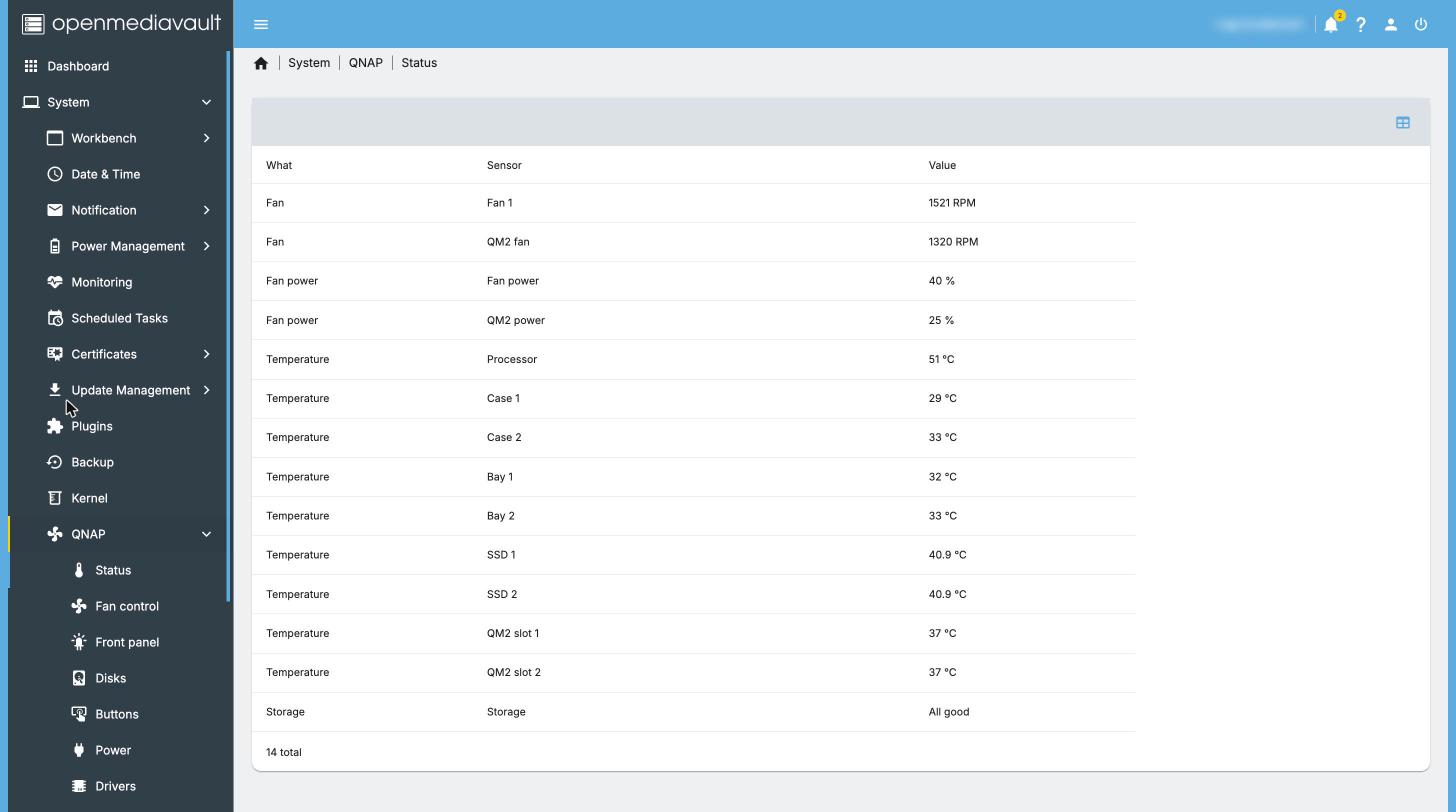
- System > QNAP > Status shows each fan’s speed and every
temperature, live.
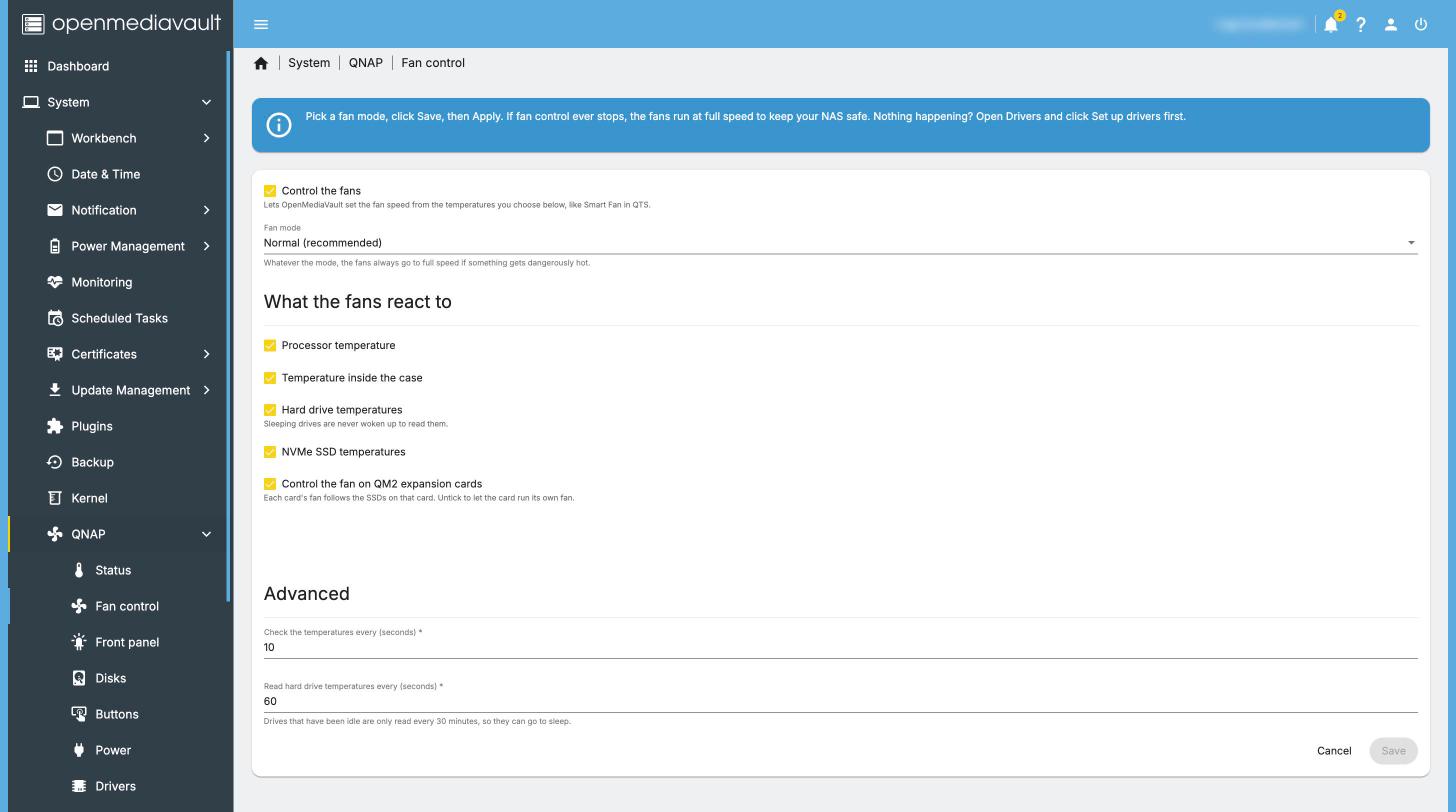
- System > QNAP > Fan control lets you pick Quiet, Normal or
Performance, like QTS Smart Fan, or Custom to set your own
temperatures. Normal is a good start. Click Save, then Apply in
the yellow bar.
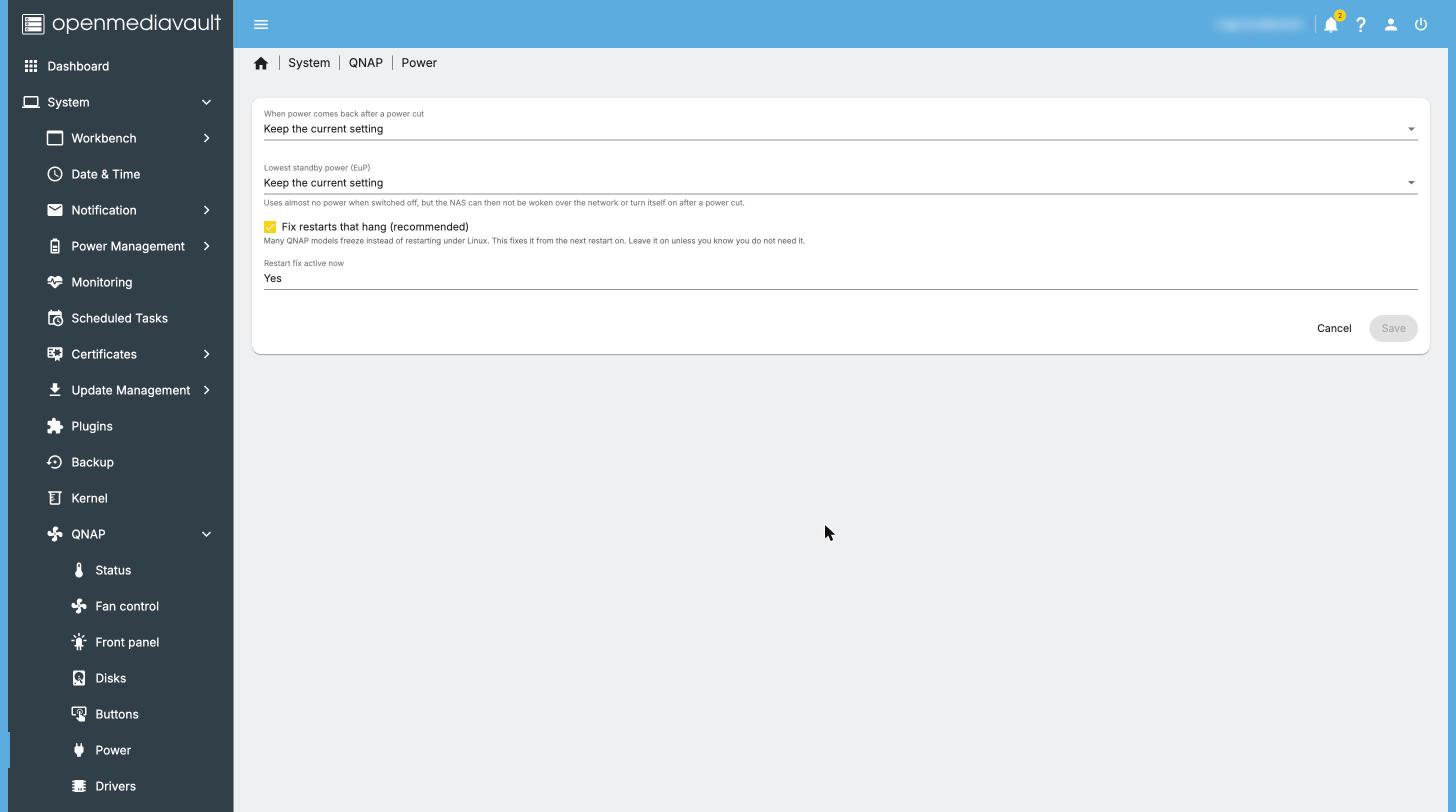
- System > QNAP > Power has the QTS power options: what to do after
a power cut, and EuP mode. Leave Use the EFI reboot method on: many
QNAP models hang on restart under Linux without it. It takes effect
after the next restart.
- System > QNAP > System shows your model, BIOS and firmware versions. The Processor & memory tab lists each memory slot, handy before a RAM upgrade, and Expansion shows cards, M.2 drives and USB devices with the speed they actually run at.
8. Set up your storage and shares
This is plain OMV, not part of the plugin. The steps below are the short version; the OMV documentation has the details.
Remember: setting up storage erases the disks. Make sure your backup is complete first.
- Storage > Disks: you should see your data disks. Select each one and click Wipe (the eraser) to clear the old QTS data.
- Choose how to combine the disks:
- Storage > Software RAID (built into OMV) for a mirror (RAID 1, like QTS’s two-disk mirror) or RAID 5. Then create a file system on the RAID.
- ZFS through the openmediavault-zfs plugin (needs omv-extras, step 6). ZFS is what QuTS hero uses. It needs more setup; see the omv-extras wiki.
- Or a single disk with no RAID.
- Storage > File Systems: click + (Create), pick the disk or RAID, choose EXT4 (a safe default), and wait. Then make sure it is mounted (OMV offers to mount it when it finishes). Apply.
- Storage > Shared Folders: click +, give it a name (for example
Photos), pick the file system, and Save. Repeat for each share. Apply. - Users > Users: create a user for each person. Then give them access in Storage > Shared Folders > Permissions.
- Services > SMB/CIFS (Windows and Mac file sharing):
- Settings: tick Enabled, Save.
- Shares: click +, pick a shared folder, Save. Apply.
- On your computer, open
\\and the NAS address in Windows File Explorer (for example\\NAS_ADDRESS), or in macOS Finder choose Go > Connect to Server and typesmb://and the address. Log in with an OMV user. - Copy your data back from your backup.
Let the disks sleep: to have idle disks spin down, set a spindown time in Storage > Disks (select a disk, edit). Some settings and tools keep disks awake; see Letting disks sleep.
9. Day to day
See fans and temperatures
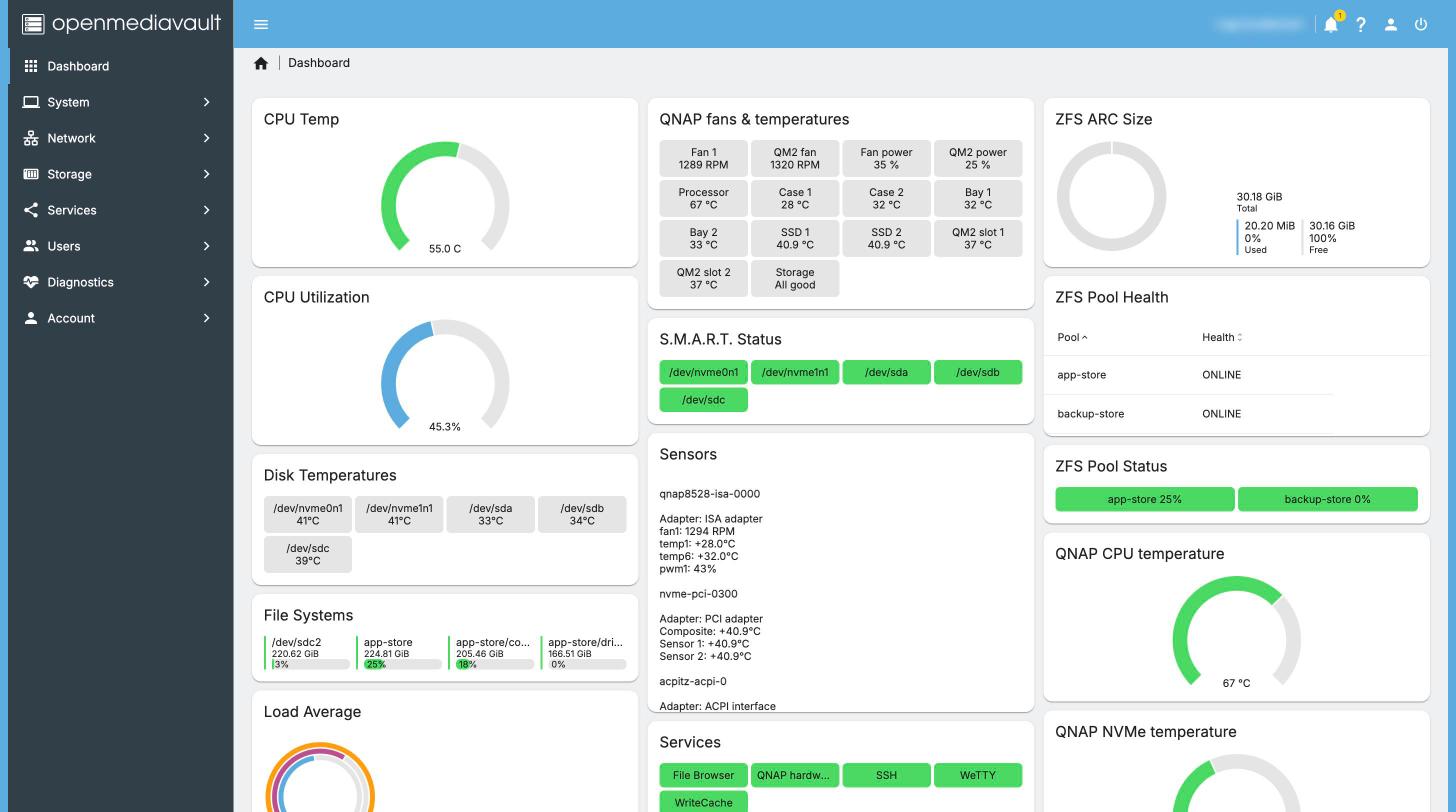
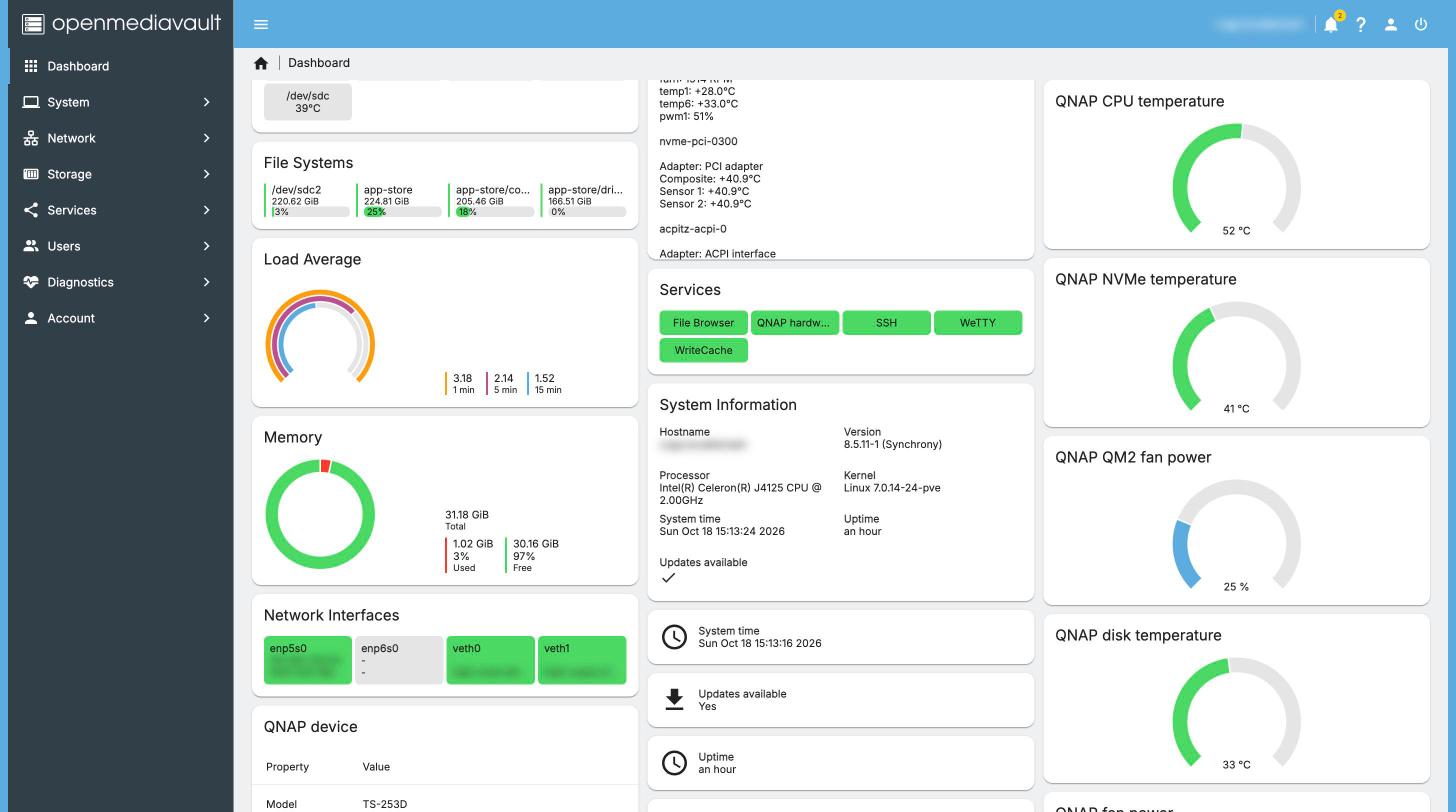
- The dashboard (the OMV home page): click the dashboard’s settings
to add the QNAP widgets: a fans and temperatures table, a device
summary and round gauges.
- System > QNAP > Status for the full list.
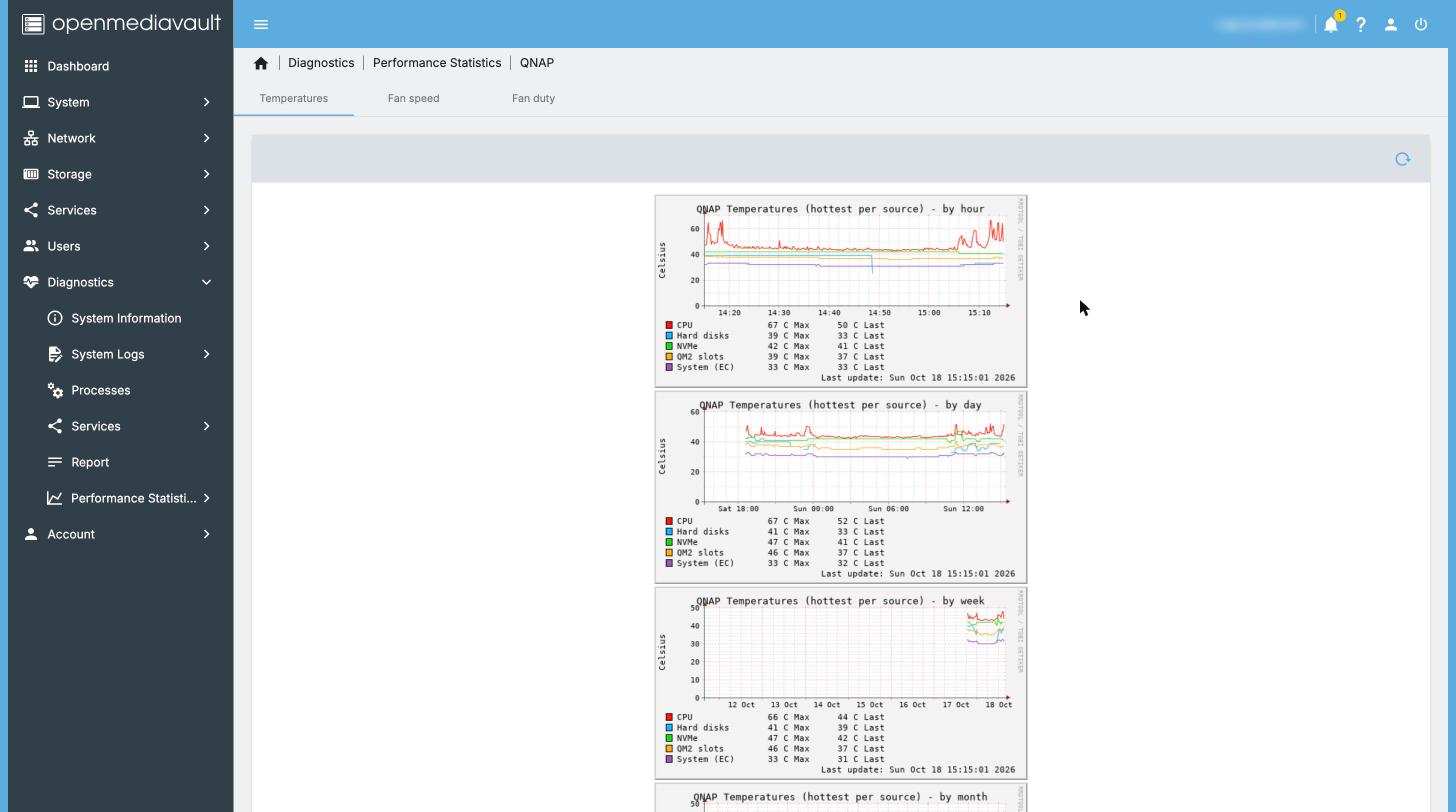
- Diagnostics > Performance statistics > QNAP for history graphs
(by hour, day, week, month and year).
Get email alerts
- System > Notification > Settings: tick Enabled and fill in your email provider’s details (SMTP server, port, user name and password, sender and recipient). Your email provider’s help pages list these. Save and Apply. Use Send test email to check.
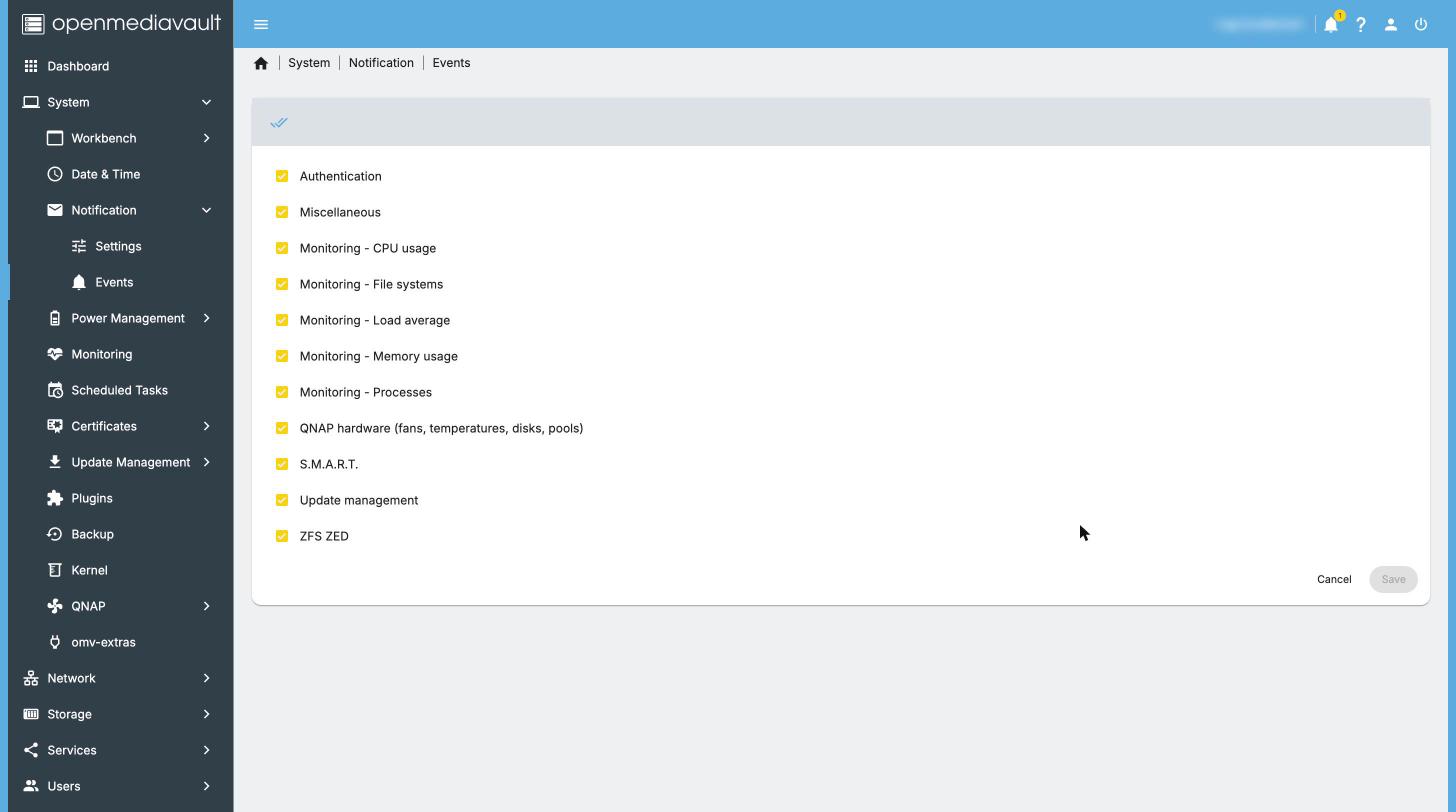
- System > Notification > Events: make sure QNAP hardware is
ticked. You then get an email when a fan stops, something gets too
hot, a disk or pool has a problem (for more than a minute), when it
clears, and if the fan service stops unexpectedly.
Dim the lights at night
System > QNAP > Front panel: set the LED brightness, then tick Night brightness and choose when the night starts and ends and how bright the lights are at night. Save and Apply.
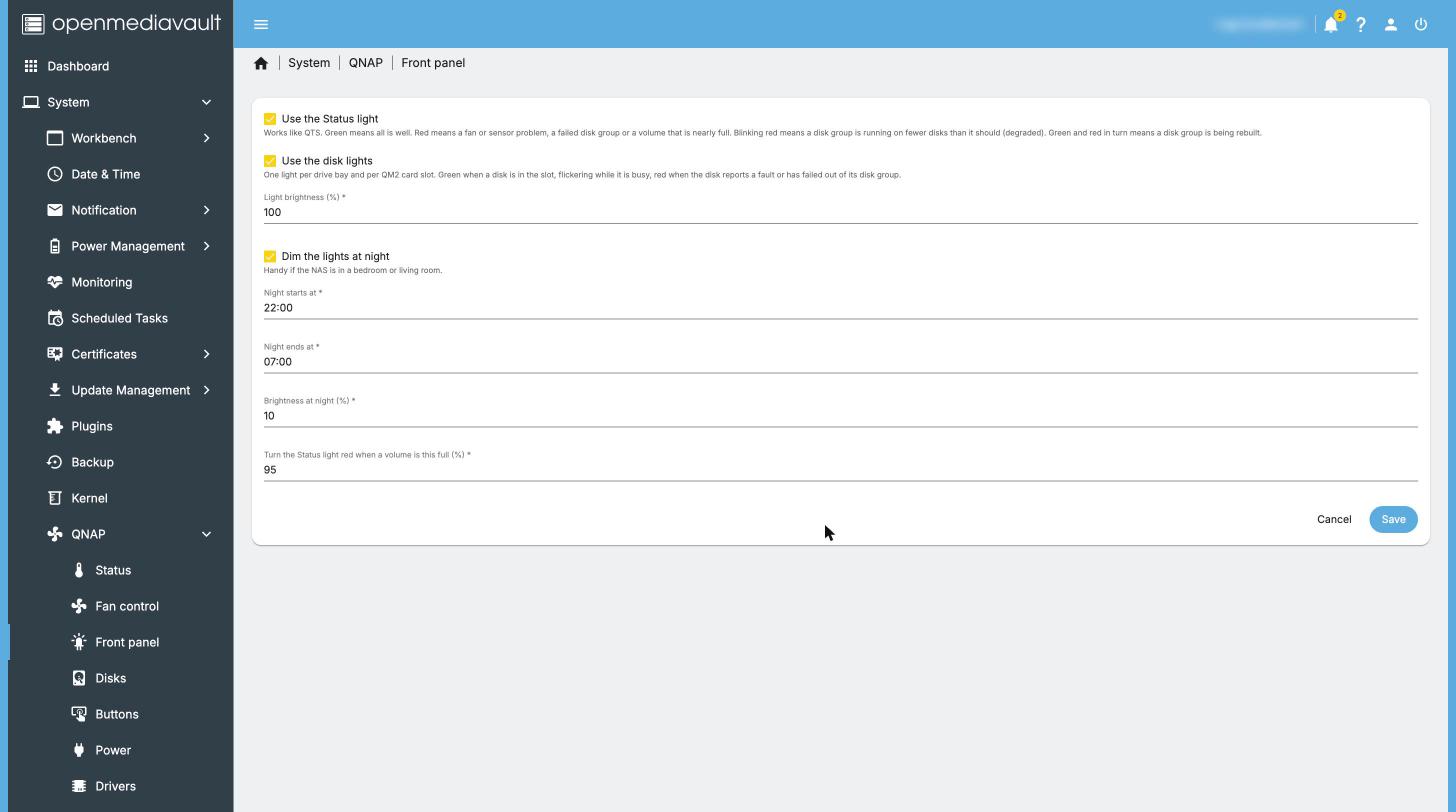
The status light works like QTS: green when all is well, red when there is a fault, blinking red for a degraded disk array.
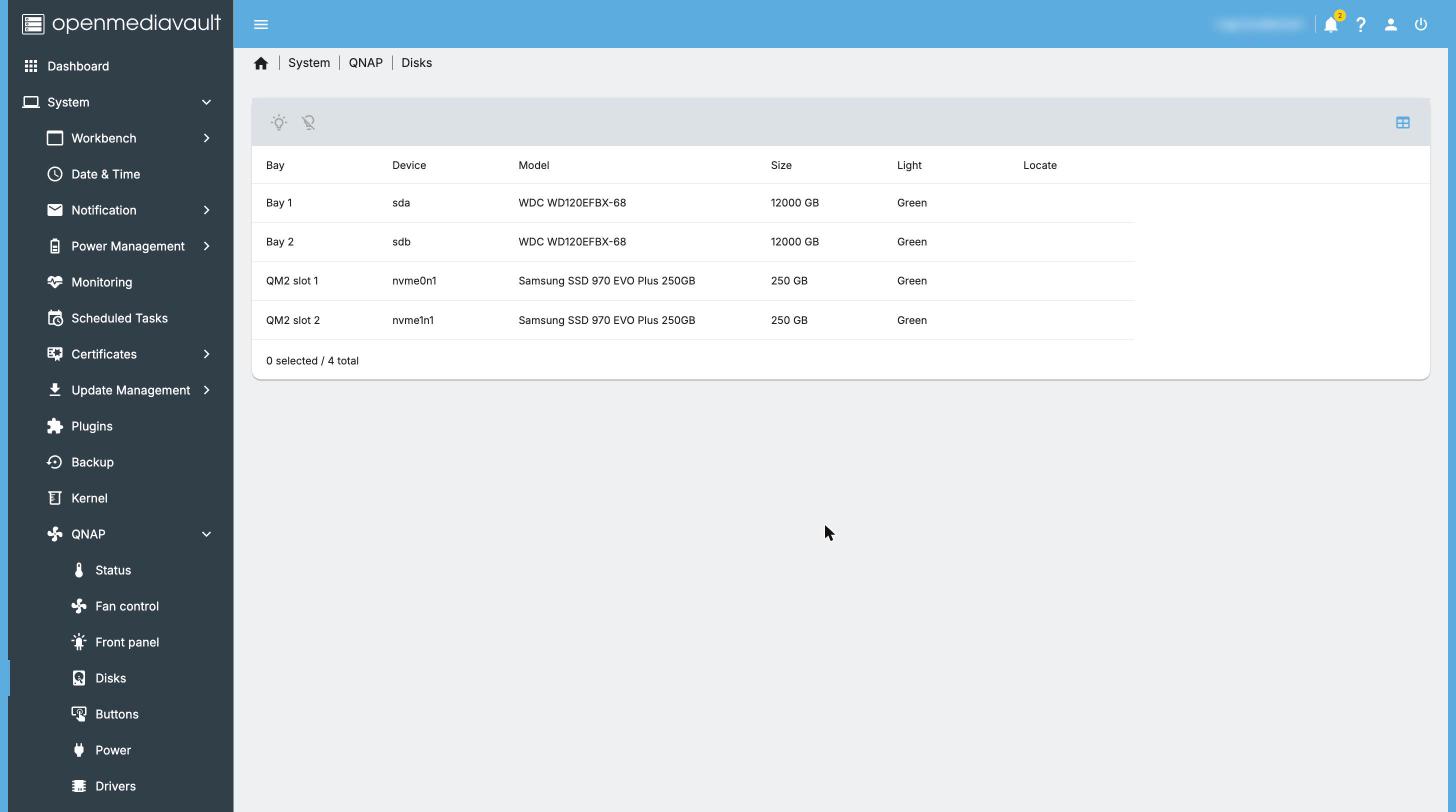
Find a disk (Locate)
System > QNAP > Disks lists the bays. Click Locate on a disk and its bay light blinks red for 10 minutes, so you pull the right tray.
Use the USB Copy and Reset buttons
On OMV the buttons run a task you choose. Here is a ready-made “copy my USB stick to the NAS” task, like QTS One Touch Copy.
Once, to set it up:
- Plug the USB stick into the front USB port.
- Storage > File Systems: find the stick in the list (by its size) and click Mount (the play button) if it isn’t mounted yet, then Apply. OMV remembers it from now on.
- Storage > Shared Folders: create two shared folders:
- one called
usbstickon the USB stick’s file system, with the path/; - one called
USB Copyon your data file system.
The Absolute path column now shows where each one is, something like
/srv/dev-disk-by-uuid-1234.../. You need both paths in the next step. - one called
-
System > Scheduled Tasks > Create: untick Enabled (it only runs when you press the button), set User to
root, and paste this as the Command, replacing the two paths with the ones from step 3:rsync -rt "/srv/PATH-OF-usbstick/" "/srv/PATH-OF-USB-Copy/$(date +%Y-%m-%d)/"It copies everything on the stick into a folder named after today’s date, and only copies new or changed files if you press it twice. Give the task a tag such as “USB Copy” so you can find it, then Save and Apply.
- System > QNAP > Buttons: pick the task under When USB Copy is pressed, run, tick Beep on events if you like, Save and Apply.
Every time: plug the stick in and press USB Copy. The USB light blinks while it copies and stays on for 10 seconds when it is done. If the stick isn’t there or the copy fails, the light goes out and (with beeps on) you hear three short beeps.
The Reset button works the same way: pick a task under When Reset is held for 3 seconds, run.
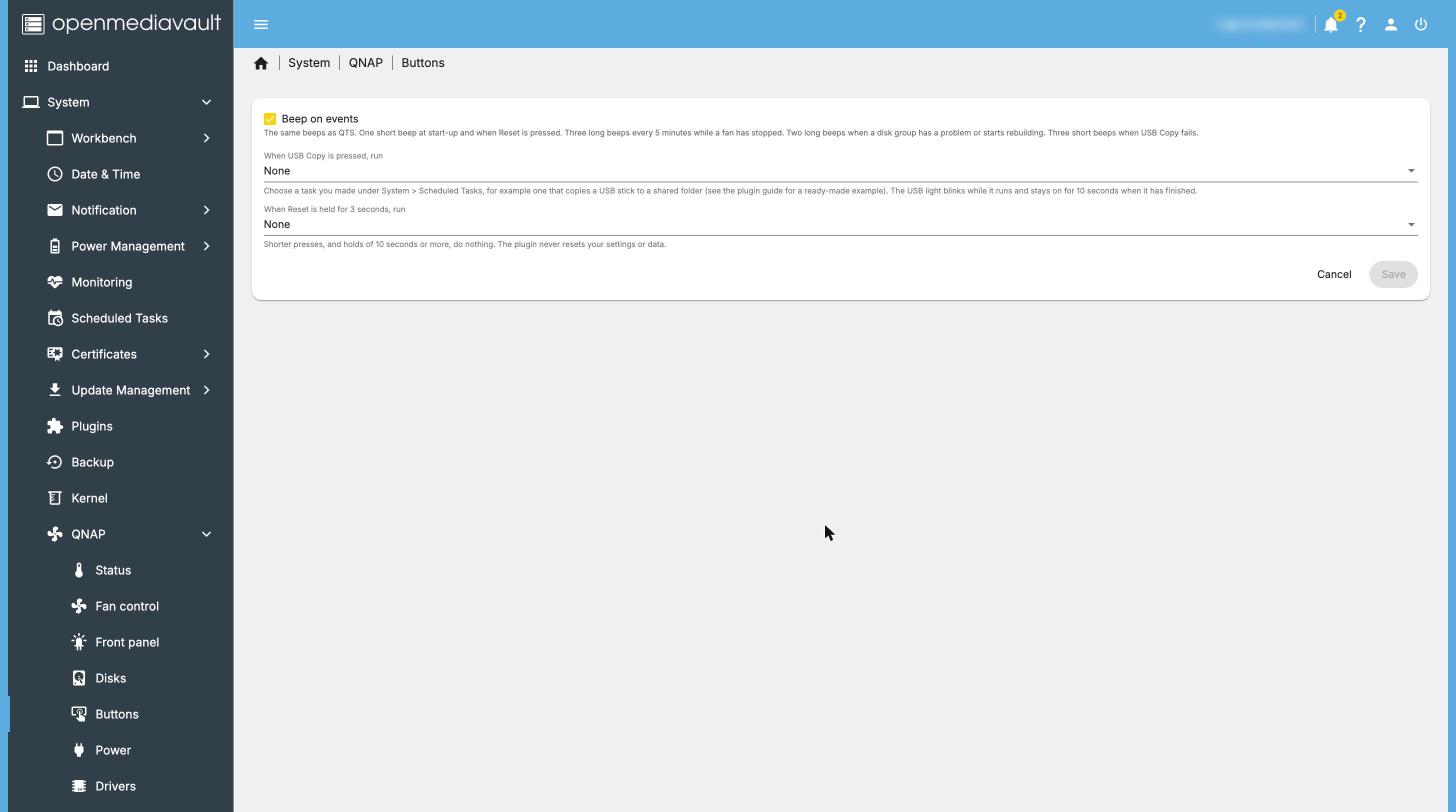
Unlike QTS, the Reset button never resets your password or network: it only runs the task you choose, if any.
Keep up to date
- System > Update Management updates OMV and Debian.
- For a new plugin version, download the new
.debfrom the releases page and upload it in System > Plugins as in step 7. Then open System > QNAP > Drivers: if Hardware drivers doesn’t say Ready ✓, click Set up drivers once.
10. Going back to QTS
As long as you didn’t install onto the internal flash, QTS is still there.
- In OMV, shut down: click the power icon at the top right, then Shutdown.
- Unplug the USB SSD.
- Turn the NAS on. With no OMV drive, it starts QTS from its internal flash. If it doesn’t, enter the BIOS (F2 or DEL) and put the internal flash first in the boot order (it may be called “QNAP” or “DOM”, or just show a small size).
QTS can’t read disks set up by OMV. It will see them as new disks and offer to set them up, which erases them. Copy your data off first, just as in step 2.
To return to OMV, plug the USB SSD back in and set it first in the boot order again (step 4.4).
11. Troubleshooting
The fans are loud (full speed). This is the plugin’s safety mode. Whenever the fan service is stopped, not set up, or has crashed, the fans go to full speed on purpose, so the NAS never overheats. Check:
- System > QNAP > Drivers: is the driver loaded? If not, click Set up drivers again.
- System > QNAP > Fan control: is Enable ticked? Save and Apply.
- The dashboard’s Services widget: is QNAP hardware running?
- Restart the NAS. If the fans stay loud, ask for help (step 12).
The Drivers page says a driver is missing or not loaded.
- Click Set up drivers and wait for it to finish.
- If it fails, check that the NAS can reach the internet (System > Update Management should be able to check for updates).
- After a big system update (a new Linux kernel), the drivers are rebuilt automatically when the NAS restarts. If the page shows missing kernel headers, click Install kernel headers, then restart.
- Your model may not be supported by the driver yet. Check the qnap8528 model list and ask.
The NAS hangs when restarting. Many QNAP models do this under Linux. Leave System > QNAP > Power > Use the EFI reboot method on and restart once more (holding the power button to turn it off if needed). Before the plugin is installed, use Shutdown and turn it back on instead of Restart.
The disks never go to sleep. See Letting disks sleep. The plugin itself never wakes a sleeping disk, but some OMV settings and other tools do.
I can’t find the NAS on the network.
Look at the monitor on the NAS: the address is usually shown above the
login prompt. Or check your router’s list of connected devices. If the
network settings are wrong, log in at the NAS as root and run
omv-firstaid (an OMV menu that resets the network and web page
settings).
I forgot the web page password.
Log in at the NAS as root and run omv-firstaid; it can reset the web
administrator password.
The NAS starts QTS instead of OMV. The boot order changed, or the USB SSD isn’t plugged in. See step 4.4.
12. Getting help
- The OMV forum thread for this plugin: openmediavault-qnap: fan control, LEDs and hardware settings for QNAP NAS. Questions about installing OMV in general are welcome on the OMV forum too.
- Bugs and feature requests: GitHub issues. Say which QNAP model you have and what System > QNAP > System and Drivers show. Please blur serial numbers in screenshots.
- Testing another model? A model test report is the best way to get your model supported.
This project is not affiliated with QNAP. Use at your own risk, and keep backups.
Sources
- OpenMediaVault documentation: installation from ISO, installation (default web login), system requirements
- openmediavault.org download page
- omv-extras wiki and its install script
- QNAP: Updating the BIOS on a QNAP NAS (F2/DEL for BIOS setup, F7 for boot options on UEFI models, USB keyboard and HDMI monitor)
- QNAP community: TS-451+: Unable to access boot menu (keyboard and cold-boot tips)
- qnap8528 driver (supported models)
- This project: tested models, the reference TS-253D, letting disks sleep